Hi
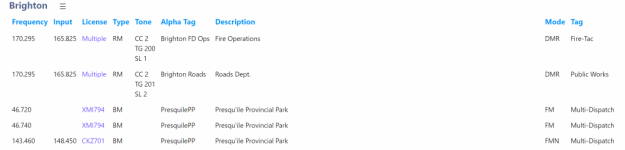
I am getting lot's of advice on this but at too high a level. In other words I am thinking the articulation is not great. Would someone be so kind as to enlighten me on why if this entry is added to my scanner why I cannot find where to append the slot and talkgroup info on the existing entries. All suggestions are indicating creating a new system. Why is that the case?
View attachment 193289
For the Whistler, DMR capable, scanners, such as the TRX-1 & TRX-2, you can create a conventional channel, and, besides the frequency, you can also enter the talkgroup, slot, and color code.
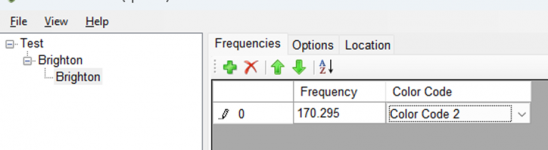
When entering a DMR frequency as a conventional channel, in a scanner such as the BCD436HP or BCD536HP, you can enter the frequency, as well as the color code. However, you do not have the option to enter a talkgroup nor a slot setting.
What you need to do is create a One Frequency Trunked system, or OFT. Doing that, you can specify the color code, as well as the talkgroup and slot.
For the frequencies in your example, create a DMR One Frequency system in Sentinel:
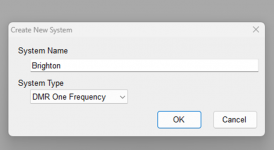
Your Frequency, as well as the color code, are entered as a SITE in the OFT system.

Enter the Frequency and Color Code in the Site detail.
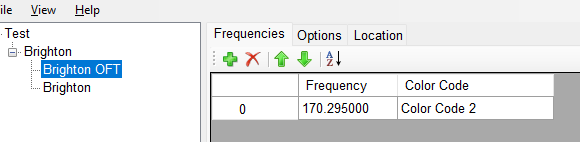
Now, create a Department, so that the Talkgroup & Slot, as well as a Description, can be entered.

In the Department, you can enter the Channel details, including the talkgroup as well as the slot for each channel.

You can also, if desired, set Roads Department to Avoid, if it is not of interest at this time. IF, say during the winter, that talkgroup is used for crews clearing snow and ice from the roads, you could remove the Avoid so that you can hear them during the winter.If additional departments are using that same frequency, you can add those channels, along with the appropriate talkgroup and/or slot assignment.
You also can assign an alert color for either or both channels, as well as set an Alert Tone, if you wanted an audio signal to clue you that the channel is active.

The additional channels & frequencies in your example above could be placed in a standard Conventional system if you also wanted to monitor them.